
Saved views
A view is the named set of settings a report is read through; views are shared by everyone on the project, make a report reproducible, and let one project serve several teams
A view is a named set of dashboard settings: which event counts as a conversion, how the credit is split, which dates, which channels are shown. Every report you read in Attribution is read through a view. The only question is whether it is a view someone has set up and saved, or one you have changed in passing.
Three things make views worth knowing about, whoever you are.
- Views are shared. A view belongs to the project, not to you. Change a saved view and everyone on the project sees the change under that name; when a colleague changes it, so do you. That is what makes a view a common language: "the Purchases view, this quarter" means the same thing to everyone.
- Views make a report repeatable. The same view with a new date range is the same report for a new period. Last month and this month are comparable because nothing but the dates moved.
- Views let one project serve several teams. The content team can read through a view that counts sign-ups and hides the paid channels; the performance team through one that counts purchases and shows only the ad channels. Same data, two instruments.
Onboarding usually sets up the first view with you, so that the conversion event, the model and the other settings fit your data. Keep that view as it is, and make new ones for new questions.
What a view holds
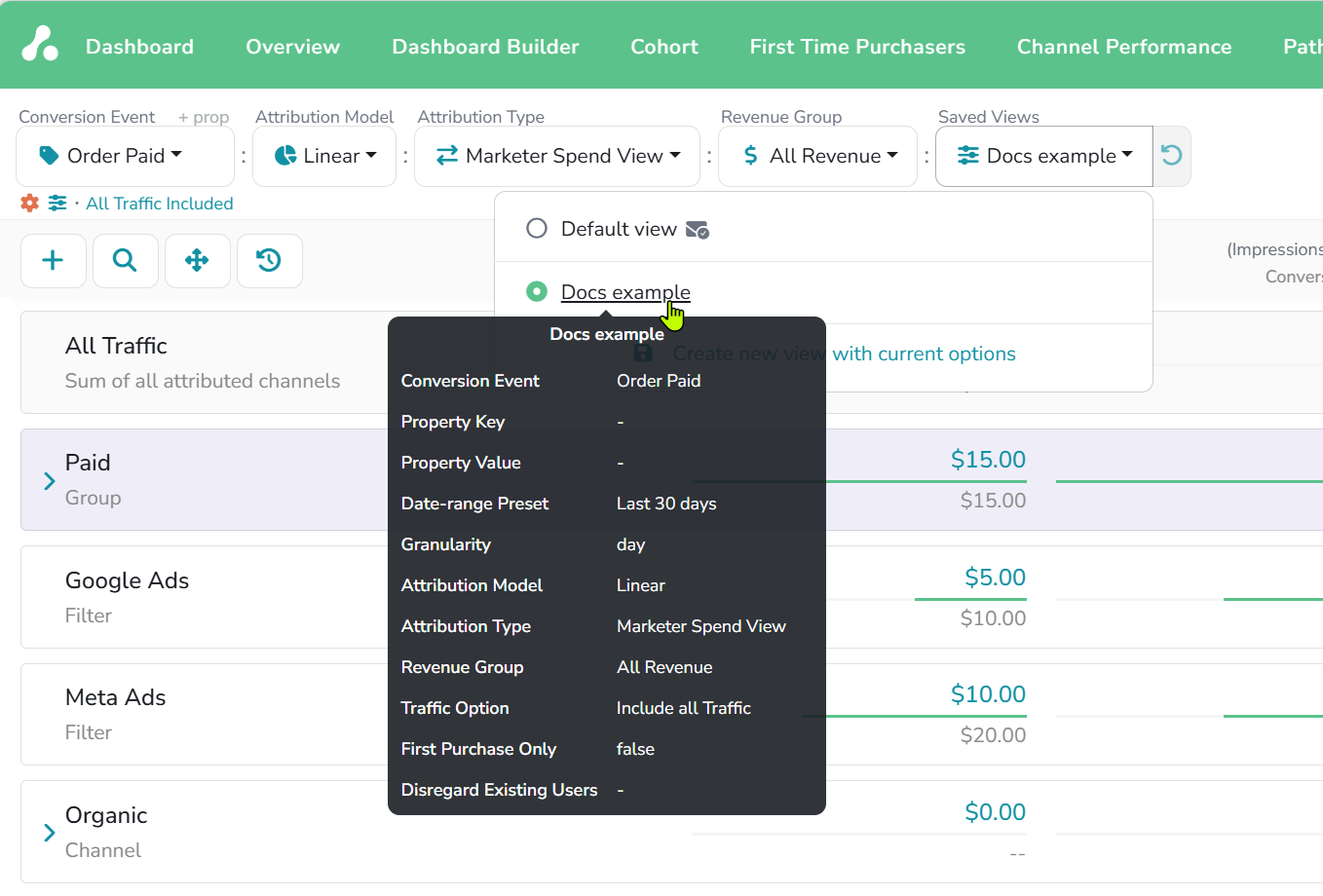
Everything in the control bar and the view options: the Conversion Event, with a property filter if you use one; the date range, as a preset such as last 30 days or as fixed dates, and the granularity the cohort and timeframe reports use; the Attribution Model; the Attribution Type with its window or scope; the revenue group; the traffic options; whether only first purchases count; and which channels and filters are hidden. Hover a view in the selector and a tooltip lists its settings.
A few settings belong to the project and are the same in every view, among them company-based attribution, currency and time zone; if something changed in all your views at once, it was one of those.
Using views
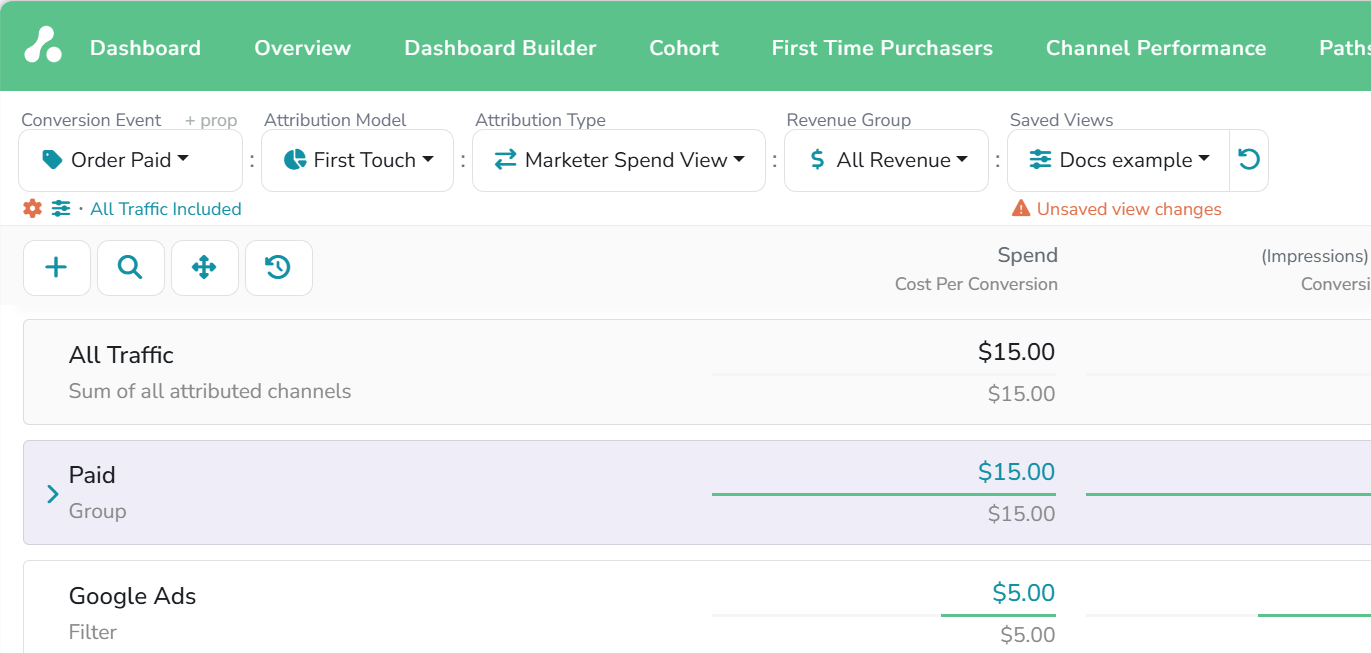
Change any control and the dashboard updates right away, but the view does not. The selector shows Unsaved view changes until you decide: save the change into the view, revert to what was saved, or create a new view from the current settings. Switching to another view drops the unsaved changes.
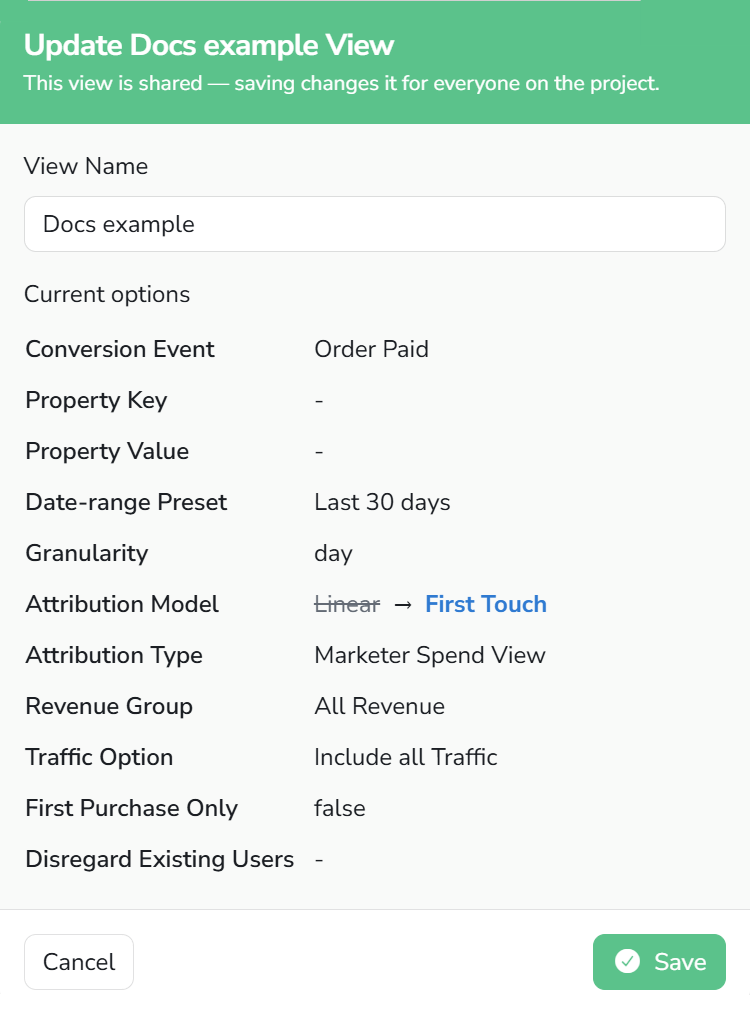
Saving shows you what you are about to change and reminds you that the view is shared. The habit that keeps a team's numbers stable is simple: before changing a view others read, create a new one instead, and name it for the question it answers. Views can be renamed and deleted from the selector; the project's Default view stays.
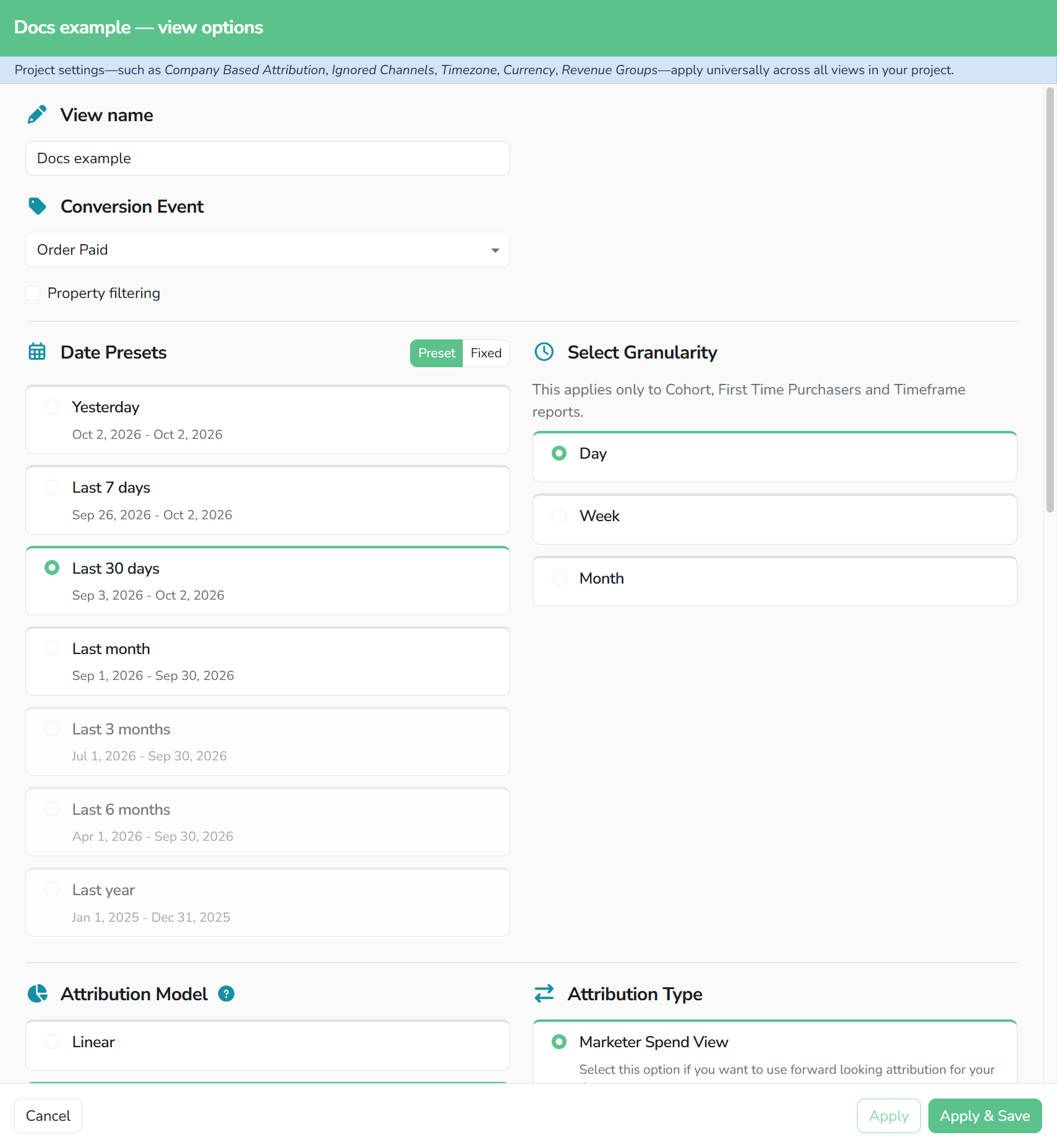
All of a view's settings are also in one place in the view options, opened from the sliders icon under the conversion event. It is the better place to tune a view deliberately: Apply tries the settings on the dashboard without saving, Apply & Save keeps them in the view for everyone.
Where views reach
The selected view drives the dashboard and the Cohort, Paths, First Time Purchasers and the other reports, so a number means the same thing wherever you meet it. Your AI assistant reads the same views through the MCP tools. And each person has one view marked Chosen for weekly summary, the one their weekly email is built from.
The settings themselves are explained on their own pages: Attribution models, Traffic options, and the Dashboard for the control bar as a whole.
If you have any questions please contact [email protected].
Updated 13 days ago