
Klaviyo
Bring your Klaviyo email, SMS, and mobile push campaigns and flows into Attribution's multi-touch reports.
Installation guide
Attribution lets you see how your Klaviyo campaigns and flows contribute to revenue, across every marketing channel you run. Once connected, Attribution pulls in your Klaviyo campaigns — email, SMS, and mobile push — along with your flows and their utm_id values, then applies multi-touch attribution across your full customer journey. You'll see Klaviyo's true impact alongside your paid social, paid search, and other channels, not just last-click.
Before you begin
You'll need:
- An active Attribution account
- A Klaviyo account with admin access
- UTM tracking enabled in Klaviyo (see Step 1 below)
Step 1: Enable UTM tracking in Klaviyo
Attribution uses Klaviyo's utm_id parameter to identify which campaigns and flows are driving clicks. Make sure this is turned on before connecting, and enable it for each messaging channel you want to measure — email, SMS, and mobile push — since Attribution matches all of them by utm_id. Follow Klaviyo's guide to configuring default UTM tracking and ensure utm_id is enabled for your account.
Why this matters: without utm_id enabled, Attribution can't match clicks back to the correct campaign or flow, and your Klaviyo data won't appear in your attribution reports.
Step 2: Connect Klaviyo to Attribution
Log in to your Attribution account, then:
- Click the Settings icon in the top right corner.
- Select Ad Integrations from the left-hand panel.
- Click Connect Klaviyo.
- Follow the on-screen prompts to authorize the connection via OAuth.
Once the connection is complete, Attribution automatically imports your Klaviyo campaign and flow names and their utm_id values. These appear in your Attribution dashboard within a few minutes.
What happens next?
After connecting, your Klaviyo campaigns and flows show up in Attribution alongside your other marketing channels, grouped into Email, SMS, Mobile Push, and Flow sub-channels (see Campaigns and flows below). You can then analyze their performance using any of Attribution's multi-touch attribution models to understand how Klaviyo fits into your customers' paths to purchase.
Need help?
If you run into any issues during setup, reach out to the Attribution support team at [email protected].
Klaviyo Data Reference
This reference describes what data Attribution pulls from Klaviyo and how it's used. No data is written back to Klaviyo — the sync is one-directional, from Klaviyo into Attribution.
Data Synced from Klaviyo to Attribution Field
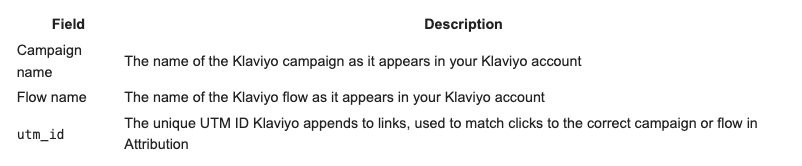
What is Not Synced Attribution does not pull the following from Klaviyo:
- Send or delivery counts
- Open-rate and click-rate percentages
- Revenue attributed by Klaviyo
- Subscriber or profile data
- Email content or creative assets
How Attribution Uses This Data Once Attribution has your Klaviyo campaign and flow names and their corresponding utm_id values, it matches them against visit activity tracked on your Shopify store. This allows Attribution to include Klaviyo touchpoints in your multi-touch attribution models, giving you an accurate picture of how Klaviyo contributes to conversions alongside your other channels.
For each email campaign and flow, Attribution also pulls its daily email opens and shows them as impressions in your reports (the Visits / Impressions metric). SMS and mobile push campaigns don't report opens, so they're measured through utm_id attribution only.
Data Direction Direction Synced?
- Klaviyo → Attribution Yes
- Attribution → Klaviyo No
Campaigns and flows
Attribution imports your sent campaigns across all of Klaviyo's messaging channels — email, SMS, and mobile push — plus your flows. Each type is organized into its own sub-channel under your Klaviyo channel:
- Email — filters of type
Email Campaign - SMS — filters of type
SMS Campaign - Mobile Push — filters of type
Mobile Push Campaign - Flow — filters of type
Flow
A sub-channel only appears once you have at least one sent campaign of that type, so you won't see an SMS sub-channel until you've sent an SMS campaign. You can rename a sub-channel to match your own taxonomy — the rename sticks across future syncs. Every type attributes the same way, via utm_id, so there's no extra setup per channel.
Use case how-to:
How to Analyze Klaviyo Performance in Attribution
Once your Klaviyo integration is set up, you can use Attribution to see how your campaigns and flows contribute to revenue, measured the same way as every other channel in your account.
This guide walks you through how to find and interpret Klaviyo data in your Attribution dashboard.
What You'll Accomplish By the end of this guide, you'll be able to:
Find your Klaviyo campaigns and flows in Attribution Compare Klaviyo's performance against your other channels Use multi-touch attribution to understand Klaviyo's role in the customer journey
Step 1: Go to Your Attribution Dashboard Log in to Attribution and navigate to the 'Dashboard' report. This is where all your connected channels appear, including Klaviyo.
Step 2: Find Your Klaviyo Campaigns and Flows Your Klaviyo campaigns and flows appear in the dashboard using the same names as in your Klaviyo account, grouped under the Email, SMS, Mobile Push, and Flow sub-channels of your Klaviyo channel. You can filter by channel or search by name to locate specific campaigns or flows.
Step 3: Choose an Attribution Model Attribution gives you multiple models to analyze performance.
Each tells a different story about how credit is assigned across touchpoints:
- First touch: gives full credit to the first channel a customer interacted with
- Last touch: gives full credit to the channel closest to conversion
- Linear: distributes credit evenly across all touchpoints
- Time decay: gives more credit to touchpoints closer to the conversion
- Position-based: you select the credit that each part of the funnel will receive
Try switching between models to understand how Klaviyo performs depending on where it sits in your customers' journeys. Email often plays a mid-funnel or retention role, so linear or time decay models may reflect its impact more accurately than last-touch alone. View the conversion rate, cost per conversion, revenue per conversion, revenue, and return on ad spend for each of your Klaviyo campaigns and flows.
Step 4: Compare Klaviyo Against Other Channels With all your channels in one view, you can directly compare Klaviyo's attributed revenue against paid social, paid search, and other sources using the same attribution methodology across the board. This makes it easier to make informed decisions about where to invest your marketing budget.
Need Help? If you have questions about interpreting your data, reach out to [email protected].
Updated 4 months ago