
Conversion overlap
Which other channels share a channel's conversions and how the model split them, read from the Overlap percentage on the dashboard and the sidebar behind it
Conversion overlap tells you which other channels took part in a channel's conversions, and how much of those conversions the model attributed to them. On the dashboard it is the small percentage beside a row's Conversions figure: the share of that row's conversions attributed to other channels. Click it and a sidebar names those channels and splits the conversions between them.
It is the number to read when two channels look too good together. If Google Ads and Meta Ads overlap heavily, many of your buyers clicked both, and each platform reports the sale as its own: you are paying twice to reach the same customers. A channel whose overlap is high and whose own share is small starts journeys that others finish, something no ad platform reports about itself.
What the percentage means
Take the journey from From visit to conversion: Marcus Aurelius found the site through Google Organic, came back through a Google ad and then a Meta ad, and bought for $120. Under Linear each of the three visits is attributed a third of the conversion.
The Google Ads row took part in one conversion and was attributed a third of it. The other two thirds went to Organic and Meta Ads, so the Google Ads row shows an overlap of 66.7%. The other two rows read the same: each took part in the one conversion, kept a third and shared two thirds.
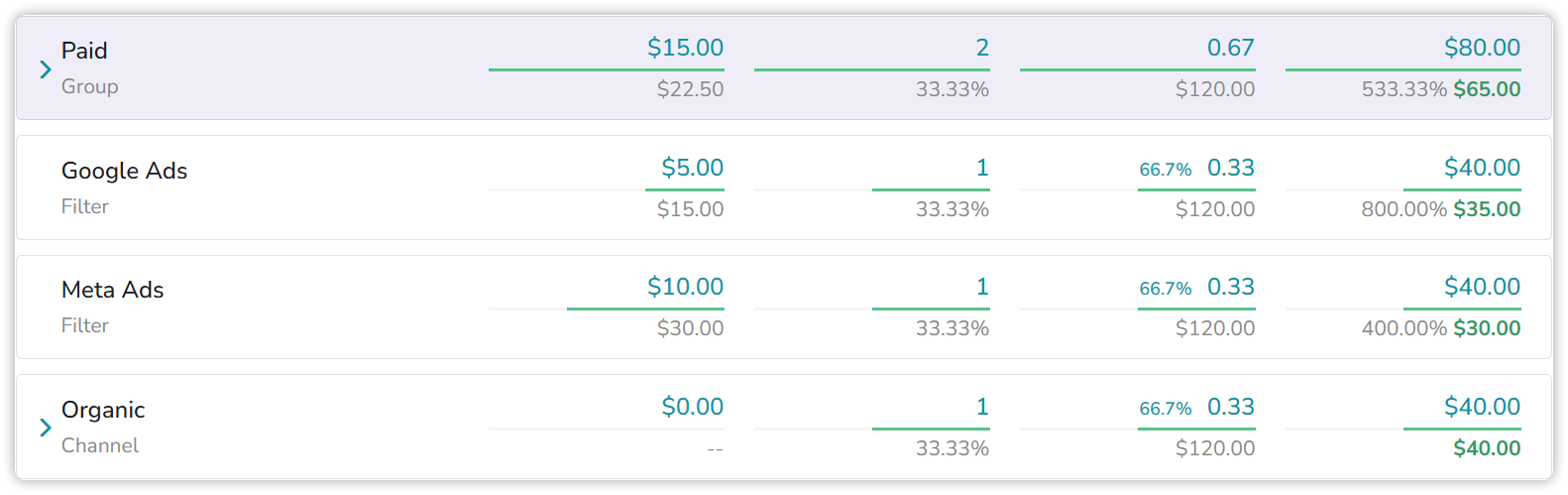
Example: the Marcus Aurelius journey, Order Paid · Linear.
In general, the overlap is one minus the row's attributed conversions divided by the conversions it took part in. A row that is the only touch on all its conversions keeps them whole and shows -, which stands for 0%. A row that always shares shows a high overlap even when its Conversions figure looks healthy.
Where it shows
- On the Dashboard, beside the Conversions figure of every channel and filter row. Groups, which add up other rows, carry none.
- On Timeframe, in the Total column; the period columns carry none.
- Not under First Touch or Last Touch. Those models give each conversion to a single visit, so nothing is shared and the percentage is hidden.
The overlap sidebar
Click the percentage and the sidebar opens on the row you clicked, titled Showing overlaps with its name.
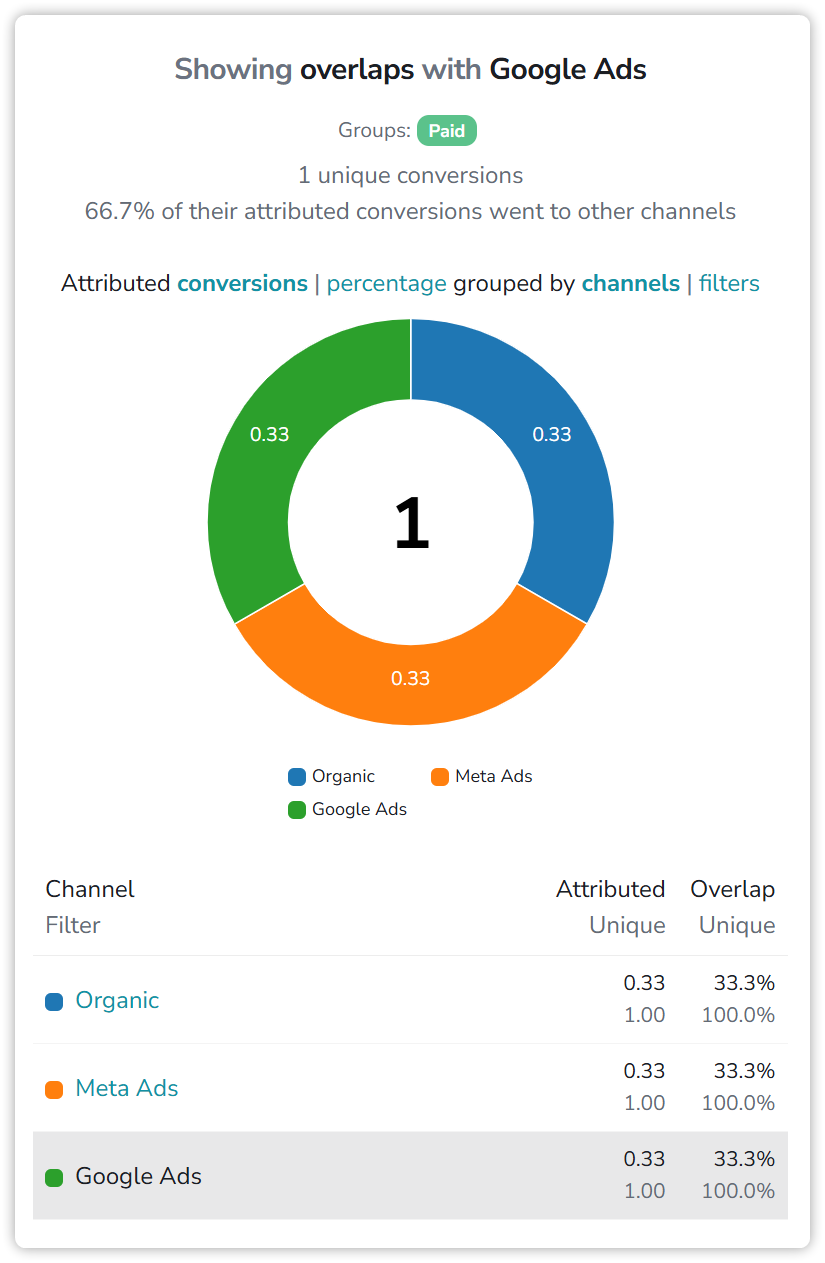
- The header counts the row's unique conversions, the conversions it took part in, and repeats the percentage you clicked: the share of their attributed conversions that went to other channels.
- Attributed conversions | percentage switches the donut and the table between counts and shares. Grouped by channels | filters switches between one row per channel and one row per filter.
- The donut splits those conversions by where they were attributed, your row included: the nine largest, and the rest together as Other. Click a slice to hide it; click the centre to switch between counts and percentages.
- The table lists the same rows, yours highlighted. Each shows its channel with the path to it underneath; click the name to open that row's own overlap, or its colour swatch to hide or show its slice. Two pairs of numbers sit on each row:
- Attributed / Unique: the conversions attributed to that row, and how many of your row's conversions it took part in.
- Overlap / Unique: the same two, as a share of your row's unique conversions.
In the example, the Meta Ads row reads: it took part in every one of Google Ads' conversions (Unique 100.0%) and was attributed a third of them (33.3%). Organic reads the same, and Google Ads, highlighted, kept the last third: together the three thirds make the one conversion in the donut's centre.
Under the Lifetime scope
Under Marketer Spend View with the Lifetime scope, a visit in the date range keeps a share of later conversions, and those conversions can also be attributed to visits outside the range. That share belongs to no channel in the range, so it is shown on its own:
- The percentage on the row carries an asterisk, because it counts that share as going to others.
- The sidebar's header splits that percentage in two: the share that went to other channels, and a line starred in red with the share attributed to visits outside the date range.
- The donut and the table show it as a row of its own, Outside date range, in light gray.
Reading the numbers
- It follows the view. The attribution model, attribution type, traffic option and conversion event in the control bar decide what is attributed, so they decide the overlap too. Switch the model and the percentages change with it.
- It counts conversions, not visitors. A visitor who bought twice brings two conversions.
- The Attributed column adds up to the header's unique conversions, because each conversion is attributed once in total. Under the Lifetime scope the Outside date range row closes the sum.
- A visit that earns nothing shares nothing. If your Position Based ratios give a position 0%, a visit in that position takes no part in the conversion.
Updated about 15 hours ago